
Production licensing
NumberForge billing and license activation happen inside Salesforce, in NumberForge Configuration. The public site explains pricing; checkout and subscription management use Stripe from your org admin session.
| Org type | Subscription | Runtime |
|---|---|---|
Sandbox (test.salesforce.com) | Not required | Always allowed |
Production (login.salesforce.com) | Required (7-day trial with card when eligible) | Blocked until Stripe subscription is synced |
Developer Edition and other orgs on login.salesforce.com follow the Production row.
In a production org, open NumberForge Configuration. The License section appears at the top of the page (it is hidden in sandbox orgs).
Before you subscribe
Section titled “Before you subscribe”When there is no active Stripe subscription for your org, NumberForge shows subscribe actions and blocks runtime until billing is in place:

Active subscription
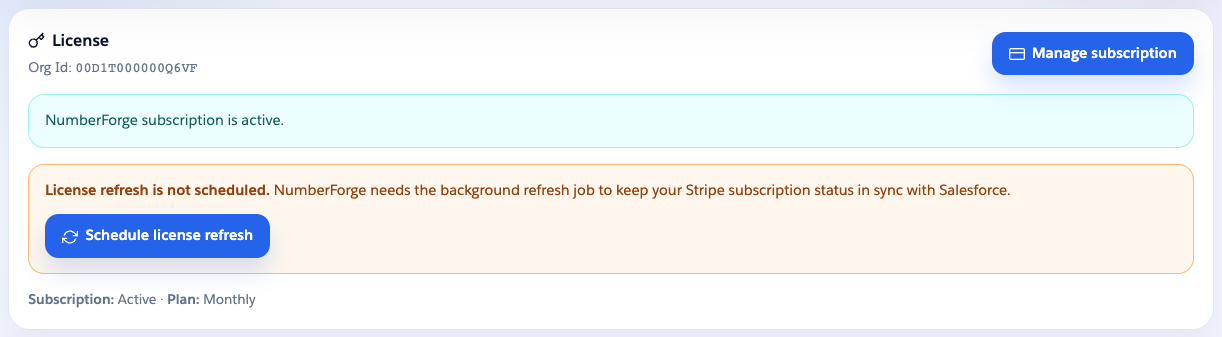
Section titled “Active subscription”After checkout, the panel shows an active subscription. Use Manage subscription for the Stripe billing portal (invoices, payment method, cancel):

Subscribe (production orgs)
Section titled “Subscribe (production orgs)”- Open NumberForge Configuration in your org.
- In the License section, choose Subscribe monthly or Subscribe annual (or review pricing first).
- Complete Stripe Checkout (7-day trial with card when eligible). Enter billing address (for invoices). If you need a VAT number on invoices, use the business tax ID section in Checkout (optional) or add it later via Manage subscription.
- Return to NumberForge Configuration. Your subscription syncs automatically after payment.
If you subscribed before installing, open NumberForge Configuration after install. The panel syncs on load or when you click Refresh.
Manage billing
Section titled “Manage billing”In NumberForge Configuration → License, click Manage subscription to open the Stripe billing portal (cancel, update card, billing address and tax ID, invoice history).
If runtime is blocked but Stripe shows an active subscription, click Refresh in Config Manager.
Background refresh
Section titled “Background refresh”Production orgs verify the Stripe subscription every 6 hours via a scheduled job. If the job is missing, the License panel shows a warning with Schedule license refresh. Sandbox orgs do not schedule refresh jobs.